Log in
For fleets of 5 trucks and up

Dispatch it once. Track it live. Bill it the same day.

The board, the map and the invoicing are one system. No whiteboard to rebuild every morning, no loads retyped into QuickBooks at night, no calling drivers to find out where they are.

Ladeway's live map. Six truck markers sit across Northern California between Oakland, Sacramento and Chico, and a rail of load cards runs down the left. The load with no device on it is pinned to the top in amber with an Assign a device button, and a load whose phone has gone quiet is greyed out beneath it.
Live Map · every active load in one place, and the one truck nobody can see flagged at the top
Operational records · August 2026

Proven over 4.5 million miles.

Every figure below comes from the working California carrier that has dispatched, tracked and billed on Ladeway since 2019.

Dispatch

Type a load once, and never type it again.

The board is your day: loads in progress on top, delivered history underneath, with date, order number, customer, route, driver and equipment on one row you can sort any way you want.

That row is the load the map tracks and the load you bill. No spreadsheet running alongside it, no export, nothing to key in twice and reconcile later.

The Ladeway dispatch page. A Loads in Progress table lists seven loads with date, order number, customer, route from origin to destination, driver, and truck or trailer. A Delivered Loads table begins below it with older work.
Dispatch · today's work on top, everything you have already run underneath
Invoicing and billing

No delivered load quietly goes unbilled.

Every load carries its billing state on its own row: Synced, Synced and paid, Synced and partial, Queued, Error and retry, or a Sync button where nothing has gone out yet. One glance down the column tells you what is still owed to you.

An invoice that failed to reach the books shows up here on the day it failed, not on the last day of the month when you are trying to close.

The Billed Loads list. An Accounting column shows one status chip per row: Synced, Synced and paid, Synced and partial, Queued, Error and retry, and a Sync button on the row that has not been pushed to the accounting system yet.
Billing · where every invoice stands, without opening the accounting system
QuickBooks Online

Get your evenings back from invoice entry.

Connect your QuickBooks Online company once, from settings. After that every invoice you bill here goes across on its own, and payment status comes back onto the row it came from.

Nobody rekeys an invoice at nine at night, and nobody reconciles two systems by hand. The books and the board hold the same set of facts.

The Integrations settings page. An Accounting panel holds a Connect QuickBooks Online button, above a Sync activity panel that lists what has been pushed to the accounting system.
Settings, Integrations · connect QuickBooks Online once, then leave it alone
Live GPS tracking

Stop calling drivers to ask where they are.

Real-time telemetry from the phone in the cab or an in-cab unit puts every active load on one map. Open a load and you have the driver, the truck, the speed it is doing and when it is due in.

So when a customer calls about their delivery, you answer while they are still on the line. And when a truck stops reporting, the map flags it, instead of leaving it sitting there looking parked until somebody notices.

Where a load is comes from what happened at the dock, not from a pin on a device. One driver hauling three loads on one trailer gets three correct tracks, and the coverage line above the map says plainly what is reporting, what went quiet and what never started, instead of leaving an hour-old dot looking live.

Every trip also writes its own record as it runs: who drove, which truck, when the day started and where it ended. Months later, when anyone asks about last Tuesday — a customer, an insurer, an examiner — the answer is already on file, not in seven drivers’ memories.

A load card open beside the live map. It lists both stops with their times, the driver, the truck, the device, a battery at 82 percent and a current speed of 50 miles per hour, then an estimated arrival time under a chip reading Estimate, with one line naming the stop it is measured to.
Live Map, load card · where the truck is right now, and when it is due in
A load card for a truck parked in Chico, its speed reading zero. Under the heading Arrival suggestions it names Chico Feed and Supply as a drop, with the suggested arrival time and a three minute wait, above a line saying a dispatcher confirms arrivals.
Live Map, load card · the truck reached the dock, waiting on your confirmation
The driver app

Off duty is off.

Tracking runs between the driver tapping Start trip and End trip, and never outside it. The app says exactly what it collects before it collects anything, and a driver who declines still gets their loads, stops and paperwork. Drivers know where they stand, which is why they keep the app on their phone.

Proof of delivery works at a dock with no signal: signature, photos and the pickup checklist are saved on the phone and sent the moment the truck finds a bar. Nothing waits on coverage, and nothing is lost to it.

A driver's own phone pairs in one tap. When they hand back the keys, one click on the Devices page cuts it off.

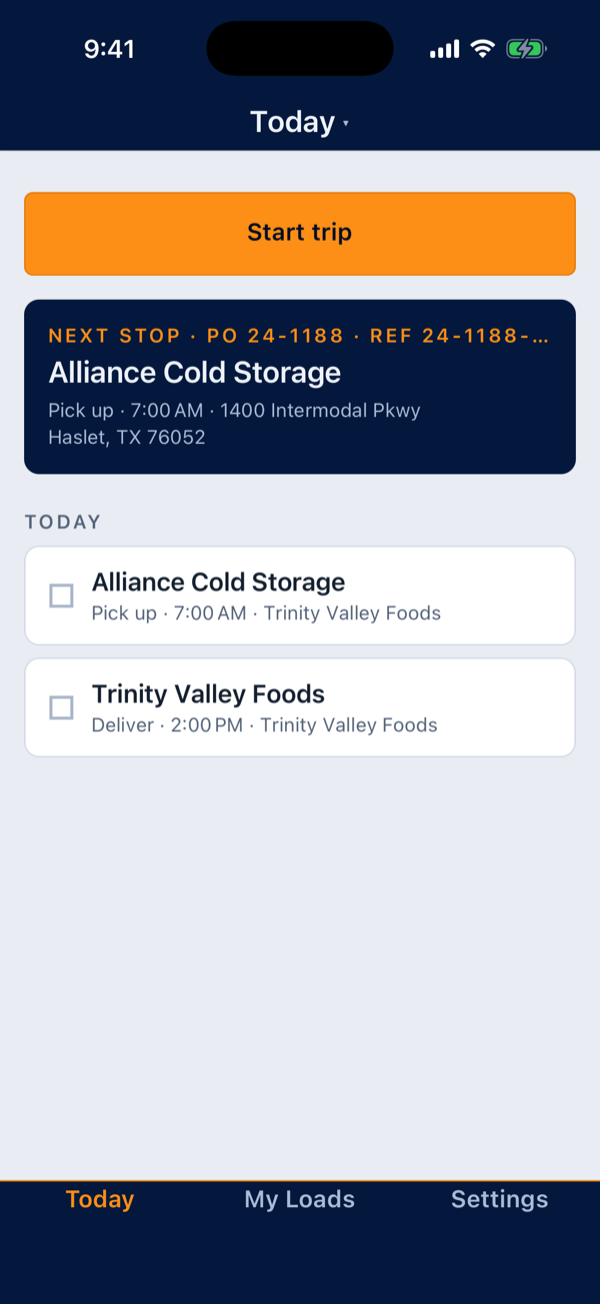
The driver app's My Loads screen: a list of load cards, each naming the customer, the route and the next stop, with a Start trip button above them.
My Loads · the day, in order
The driver app's pickup checklist for a stop: items such as seal intact and load secured, each with a checkbox, ticked on the phone at the dock.
Checklist · ticked at the dock, no signal needed
The driver app's Freight tab for a load: the items on the truck with their counts, grouped by the stop they load and unload at.
Freight · what is on the truck, and for whom
Getting started

No install day. No hardware to buy.

A driver's phone starts reporting in minutes, and in-cab units work the same way. Add the device, put it on a load, and that truck is on the map for everyone watching it.

One list shows what is reporting, what went quiet and what never started, so you fix a gap in the same place you find it. When a driver hands back the keys, one click cuts their device off.

The phone is enough. When you want the truck itself on the record, a small adapter plugs into the vehicle's telemetry port and the app reads it: engine on or off, fuel, coolant, mileage, and a check-engine light the moment the truck stores a code, on the dispatcher's board and on the driver's screen. Optional, and nothing else changes.

The Devices settings page. Seven registered devices list kind, label, driver, truck, status, last seen and battery. One row's last-seen cell is grey reading an hour ago; another is amber reading never reported. The top row is expanded to a load picker with Start assignment and End assignment buttons, and a line naming the load the device is currently on.
Settings, Devices · what is reporting, what went quiet, and what never started
Start here

Get your trucks on the map.

Tell us how many trucks you run. We will walk you through the dispatch board, an invoice and the live map, on the system that has run a California carrier since 2019.

40,000+ delivered loads · 4.5M miles · 385 customers · running since 2019

Would rather just write? hello@ladeway.com

A reply within one business day.